
Facebook engagement package: a practical guide
Each content campaign may require a different way of coordinating interactions. The Facebook Interactive Package on AZLIKE collects options and functionality for you to compare the components, objects, and conditions of each server.

 azlike.net
Read the full guide
Facebook Interactive Package: What Do You Need to Know?
The name of the interactive package does not mean that all servers contain the same number of likes, comments, shares or views. Read the specific description to find out what ingredients are provided and how to calculate quantities.
The automatic and regular variants may be in the same category. This is convenient for comparison, but does not make their range of action identical. An appropriate choice must meet the correct content and budget objectives.
Prepare before using the service
- Determine the purpose of the post or account before selecting.
- Read components, units of calculation and support objects.
- Check the ability to set, limit and add fields.
Prices and how to choose a server
The unit price and status are displayed in the server list above. Compare choices by supporting objects, quantity limits and processing conditions. After Configuration, Check Entry Cost To check the budget before confirming.
Only select the servers that are currently allowing requests. If you change servers, review the quantity and additional fields; the policy of the previous selection does not apply by default to the new choice.
Facebook Interactive Package Guide on AZLIKE
Step 1: Select Service and Enter Link
Open the correct service: Engagement package in the Facebook menu. Paste the link to the post or other object that matches the package description. Do not use a fixed type of link for all interactive packages. Use buttons Paste or paste directly; open How to find the link When you need to compare.
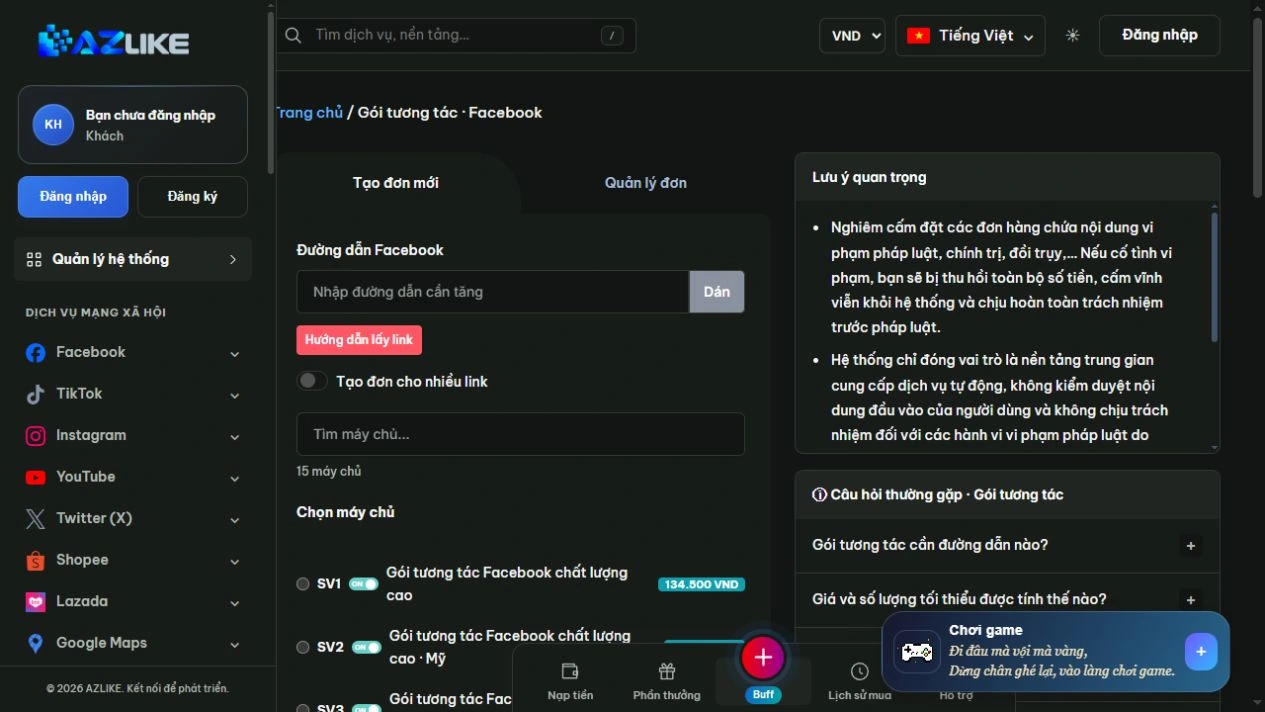
Step 2: Select the appropriate server
Use the search box or page up in the list to see the options. Read the description before selecting the round button next to the server, especially about the type of content, access conditions and data to be entered.
Step 3: Complete the settings and check the cost
Fill in the quantity and field generated by actual choice. Check the unit of account, cost and scope of the package before confirming.
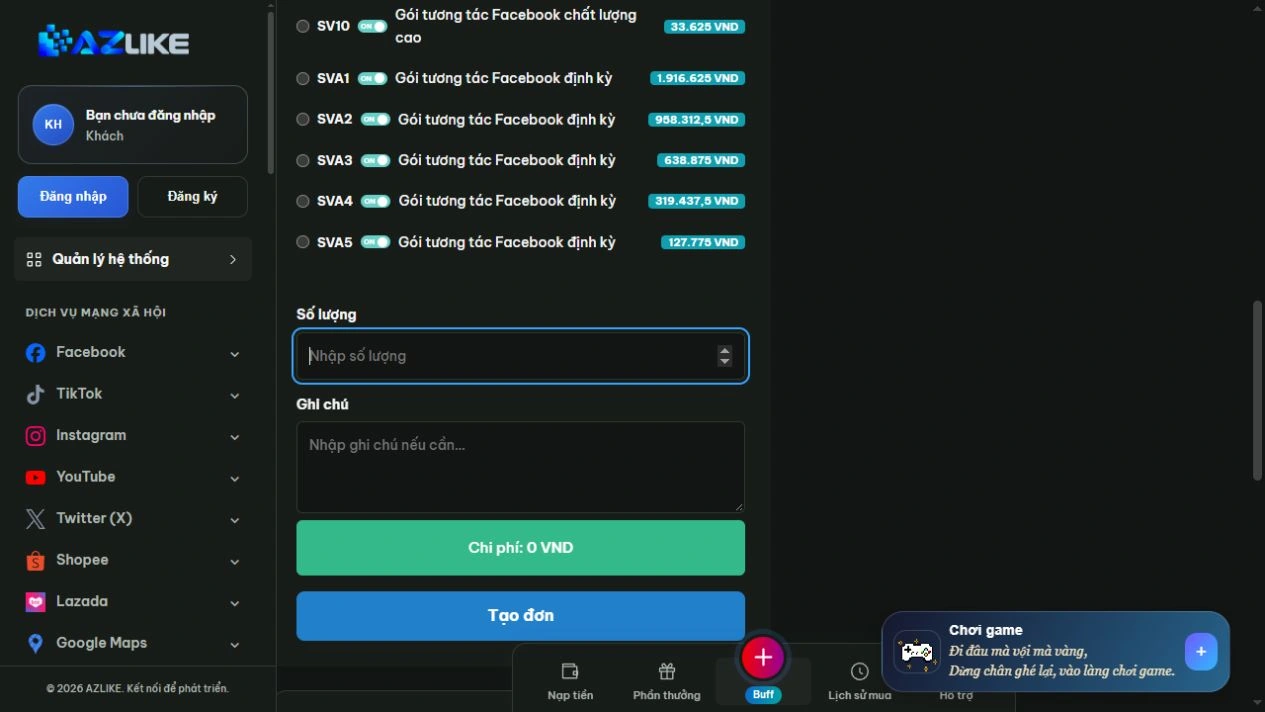
Step 4: Confirm and track the order
Log in to AZLIKE to create and manage your tickets. Check links, servers, add-ons and costs before clicking Place order. Check the receipt and order number, then open Manage orders to track the correct service.
If the submission result is unclear, check the history before retrying. When you need help, send us your order number and a description of the problem AZLIKE support.
Frequently asked questions
Does every package include likes, shares, and comments?
No, no. The dependent component describes each server.
Is there an automatic package?
If an automatic option is displayed, read the object and its own conditions.
Can this package replace every individual service?
Use only when the component meets the correct target. Particular functions still need to be distinguished.
Where can I find processing times and policies?
View information about the selected server and its status. Conditions may differ between options; if not clear, contact support before booking.
Related Facebook services
Choose additional functionality specific to the content target:
Conclusion
Choosing an interactive package should start from the content needs, not just from the package name. AZLIKE allows you to compare selections and track orders; check ingredients and budget before you start.
Exploration Facebook interactive package at AZLIKE, choose the appropriate configuration and start from your actual needs.