
X (Twitter) impressions and reach: a practical guide
X (Twitter) impressions and reach — Displays descriptions of the appearance of the content, not self-proving that the reader has understood or acted. You need to keep the correct metric when viewing the report.

Read the full guide
Key differences to understand before you start
X (Twitter) impressions and reach must match the intended target: post X by description. Impressions do not necessarily represent unique users. Do not choose a server just because its name looks similar. Read the selected option's description and check the target content.
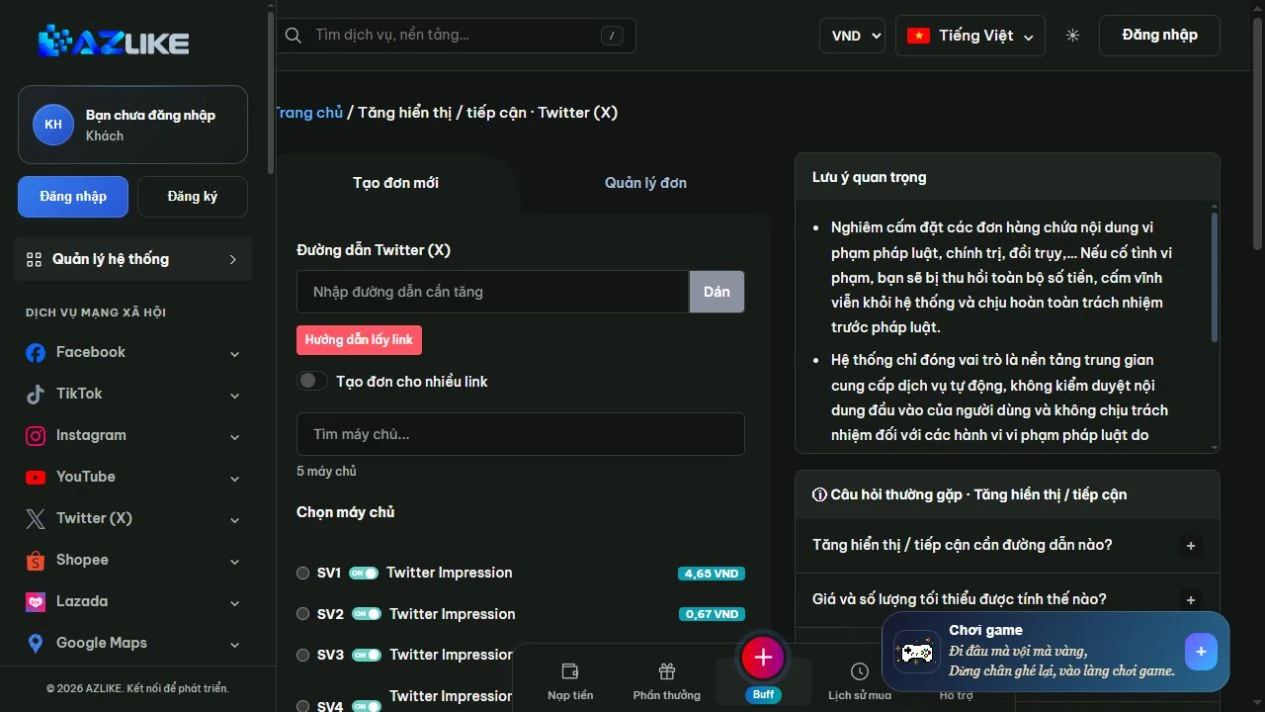
On AZLIKE, the search box narrows down the server list. The information shown for each server helps you compare the available options. Prices and limits depend on the server you select; use the current form settings as your reference, rather than relying on a screenshot alone.
An example to help you choose correctly
When reporting campaigns, put impressions next to the date measured and the corresponding post. Two different time frames should not be compared as if they were the same period of observation.
Things to check before using the service
- Check the target content: Reopen the link and check that it points to post X by description before confirming.
- Understand what the service covers: Impressions do not necessarily represent unique users.
- Keep the content and link unchanged: Avoid deleting the content or changing its link while your request is being processed.
- Do not resubmit an order if its outcome is unclear: Check your order history first. If needed, send the order ID to support so they can check it.
Tips for a more focused approach
Practical tip for X (Twitter) impressions and reach: Compare display with click and feedback at the same time.
How to assess your results: Record what you changed, when you changed it, and the metric you want to track. Compare results under similar conditions rather than attributing every change to a single cause. If your goal is sales or community retention, also track feedback and meaningful actions.
How to use AZLIKE
Step 1: Check the link before entering it
Open the correct service: Impressions and reach in the Twitter (X) section. The form displays the field Twitter (X) link. Copy the link for post X by description, open it to check the destination, then enter it or select Paste. If you are unsure about the format, read How to find the link next to the form.
Step 2: Choose a server that matches your requirements
Use the search field: Find a server, read the description, and select the radio button for the appropriate option. Check the target type, quantity limits, and processing conditions. Do not submit an old configuration for a server that is paused or unavailable for orders.
Step 3: Complete the settings and check the cost
Enter the quantity using the unit specified by the selected service. Additional fields depend on the selected option: if the form asks for content, an option, or a duration, complete the fields shown. Do not assume every server requires the same information. Check the total Cost after completing the configuration.
Step 4: Confirm and track your order
Sign in to AZLIKE, review the request details, and confirm. Save the order ID and open Manage orders to check the status for the correct service. If anything is unclear, contact support with your order ID. Do not share your social media password.
Frequently asked questions
What should I check before choosing X (Twitter) impressions and reach?
Impressions do not necessarily represent unique users. Read the description and identify the correct target before comparing prices.
What do I need besides the link?
Prepare the relevant information for post X by description and review the fields that appear when you select a server. Enter only the information required for that configuration. Do not put passwords in the notes.
Where can I check prices and processing conditions?
Check the server list, descriptions, and the total cost after entering the quantity. Conditions vary between options. If anything is unclear, contact AZLIKE support before confirming.
Explore related services
Conclusion
X (Twitter) impressions and reach — start by understanding post X by description and your goal. Compare display with click and feedback at the same time. Prepare your content and review the configuration carefully so you can monitor results with a clear plan.
Visit X (Twitter) impressions and reach on AZLIKE, check the current information, and choose an option that fits your needs.