
Facebook shares: a practical guide
Product introductions, program announcements, or community content may have different sharing goals. With the Facebook share boost service on AZLIKE, the most important step is to correctly identify the original post and sharing conditions before choosing a server.

 azlike.net
Read the full guide
Increase Facebook sharing: what do you need to understand?
The shares linked to the original content are moved to another location on Facebook. This index is different from likes and comments. The link used to create the order must identify the correct content to be shared, not the home page of the posting account.
When building content, make the message clear, use easy-to-read images and provide useful information. Sharing does not mean website visits or order numbers; those results need to be tracked separately.
How to increase Facebook shares on AZLIKE
Step 1: Select Service and Enter Link
Open the correct service: Shares in the Facebook menu. Open the article to be shared and copy the link of that article itself. Avoid linking to an intermediate share if the server requests the original post. Use buttons Paste or paste directly; open How to find the link When you need to compare.
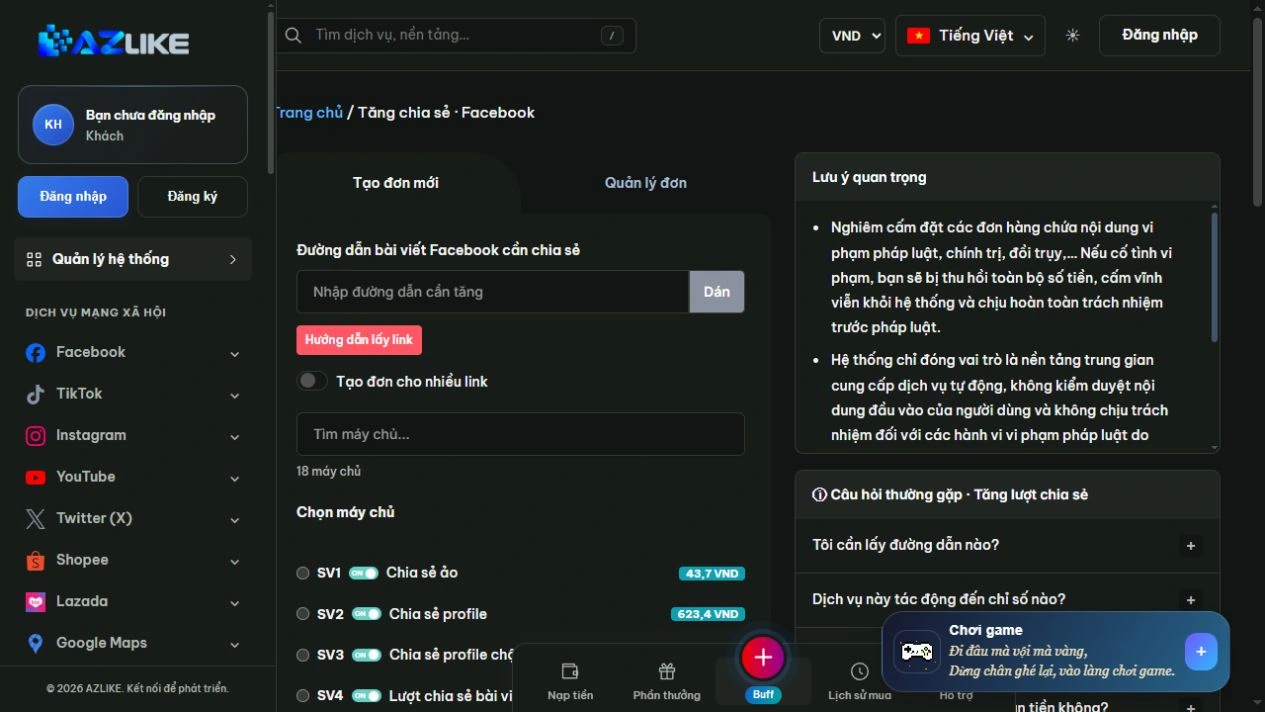
Step 2: Select the appropriate server
Use the search box or page up in the list to see the options. Read the description before selecting the round button next to the server, especially about the type of content, access conditions and data to be entered.
Step 3: Complete the settings and check the cost
Enter the number of shares within the limit. Check the share description and additional fields if the server requests.
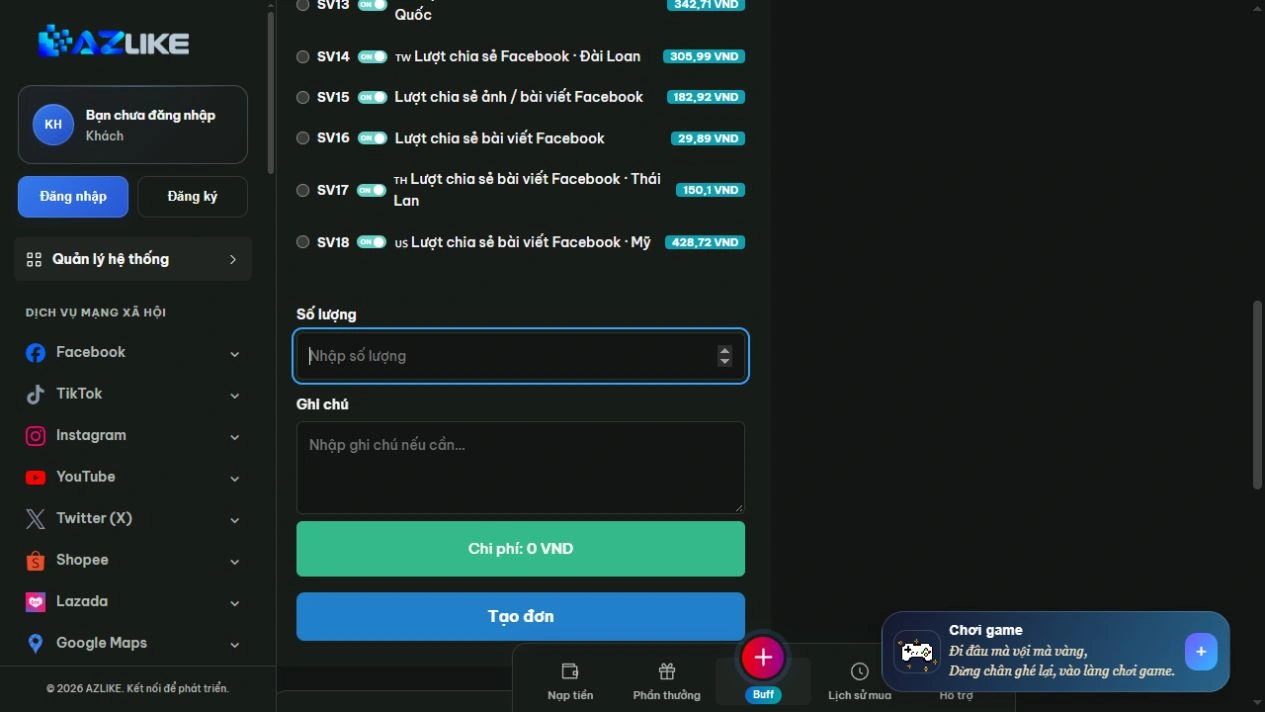
Step 4: Confirm and track the order
Log in to AZLIKE to create and manage your tickets. Check links, servers, add-ons and costs before clicking Place order. Check the receipt and order number, then open Manage orders to track the correct service.
If the submission result is unclear, check the history before retrying. When you need help, send us your order number and a description of the problem AZLIKE support.
Related Facebook services
Choose additional functionality specific to the content target: