Sharing is a way for viewers to bring video to other conversations and communities. When using TikTok share boost service, please choose the right video and understand the scope of the Share metric. This tutorial helps you create and track orders on AZLIKE.
azlike.net
TikTok shares on AZLIKERead the full guide
What is TikTok video sharing boost and what needs does it meet?
The video sharing boost applies to TikTok posts that have been linked. It is different from sharing a LIVE room that is going on. The two services can use the same sharing term but different subject and time, so you need to choose the right one from the menu.
Before allocating the budget, take a look at the message of the video: what information will viewers receive and why do they want to introduce that content? Shares are an indicator to track, but do not represent a number of unique accesses or a commitment to spread. The recording of video, configuration and order codes helps you to clearly compare the plans.
Prepare before creating order
Specifies the video to be shared.
Open the test link to avoid confusion with a social media profile or LIVE room.
Read the conditions of each server variant.
Before confirming, reopen the target link and check the content. A correctly formatted link can still point to the wrong video, account or live stream. Checking it now helps prevent an order for the wrong target.
Where is the rise in TikTok video sharing seen?
The server list above shows available options and unit prices. Use the search field or page controls to compare them. After choosing a server and quantity, check Cost to check the total cost of the configuration, instead of using the price of another option as a basis.
Choose the server according to the object, limit the number and condition of processing. If the server does not allow ordering, do not attempt to place an order with the old configuration. When changing options, review the fields that appear on the form to ensure the information is still relevant.
How to increase TikTok video sharing on AZLIKE
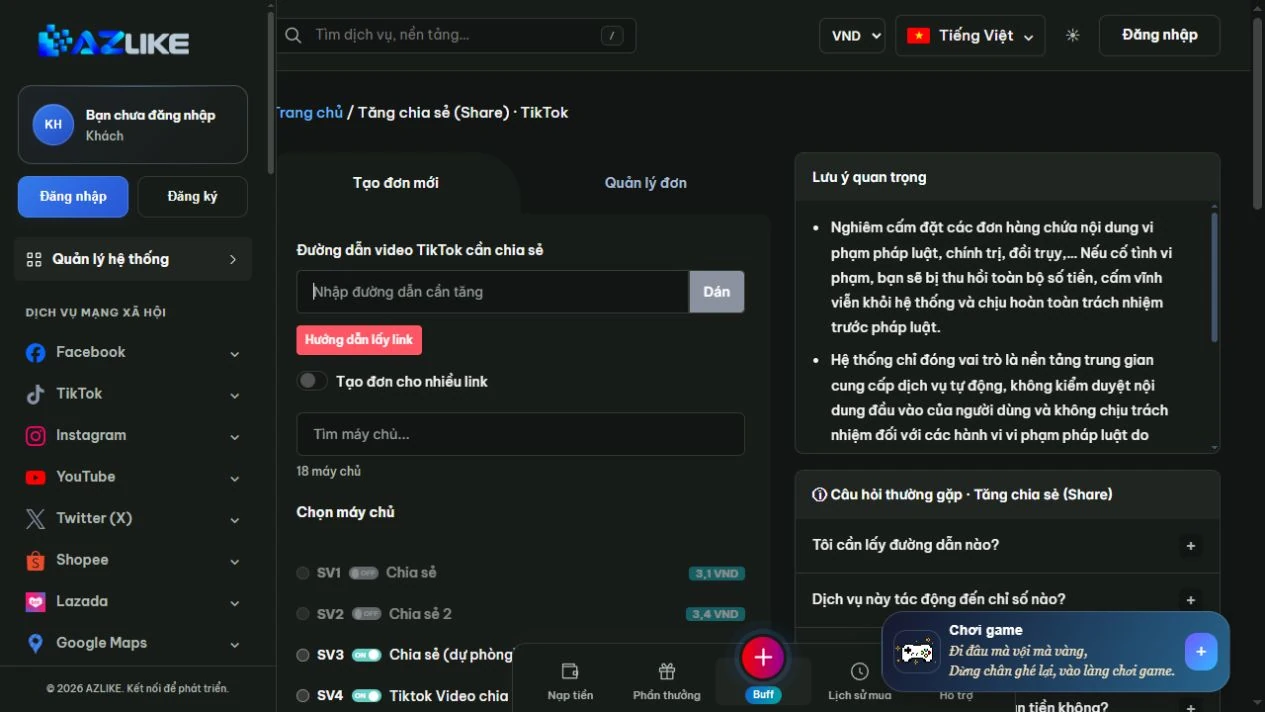
Step 1: Open the service and enter the link
In the TikTok menu, select Shares. Paste the TikTok video URL to be shared. If the shortened link leads to different content, retrieve the link from the correct video before creating the order. You can use buttons Paste or directly enter; items How to find the link Format comparison support.
Order settings for TikTok shares on AZLIKE
Step 2: Match and select server
Read the name, description and conditions of the option, then select the corresponding round button. With a long list, search for the information you need instead of hastily selecting a line. The status and unit price on the form are data used to check before ordering.
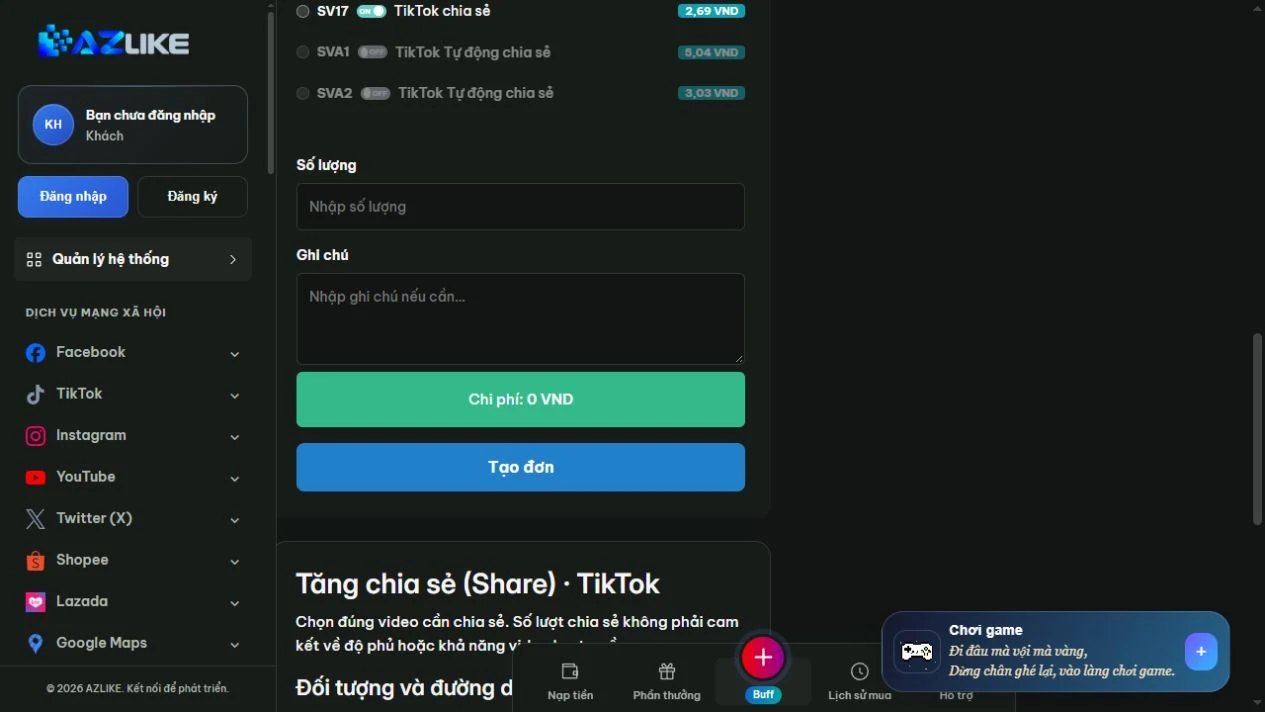
Step 3: Configure quantity and cost
Enter the number of shares, check limits and costs. Automatic options, if available, still use their own conditions; only the types that are supported are set.
Quantity and cost settings for TikTok shares on AZLIKE
Step 4: Confirm and manage orders
Log in to your AZLIKE account, check your links, servers, add-on fields and costs, and click Place order. Read receipt notification, save order code and open Manage orders to track the correct service.
If you are unsure whether the request has been received, check the history before retrying. When you need a comparison, send the order number and a description of the problem AZLIKE support; do not send TikTok passwords in exchange content.
Frequently asked questions
How many viewers does one share represent?
There is no fixed provision in the form of service. The number of shares should not be used to infer the number of accesses or the number of orders.
Can this service be used for LIVE content?
Select the livestream share option when the object is a live broadcast. The current entry is reserved for video according to the server conditions.
Where can I check processing times and policies?
See the server description and the corresponding status bar. The options may have different conditions; if the information is unclear, please discuss with support before confirming. Do not use the policy of one server to infer for the entire service.
Related TikTok services
Choose the correct item for the object and type of interaction you need:
The TikTok share boost service is easier to follow when you determine the right video and Share metric. With AZLIKE, you can check selections, configurations and costs in a unified process, then manage the results by order code.


 azlike.net